


1 min reading
Review of Cooperation with Livepage from MISSIA Bridal


In a digital-first world, a strong, well-maintained online presence is a rule of thumb for any business. 96% of people search for businesses like yours online, especially on Google. That is where your Google Business page comes in as one of the most powerful tools you can use to boost your local Google search presence and connect directly with potential customers in your service area.
In this guide, we’ll break down how to create a Google Business Profile and make your business visible on the digital map.
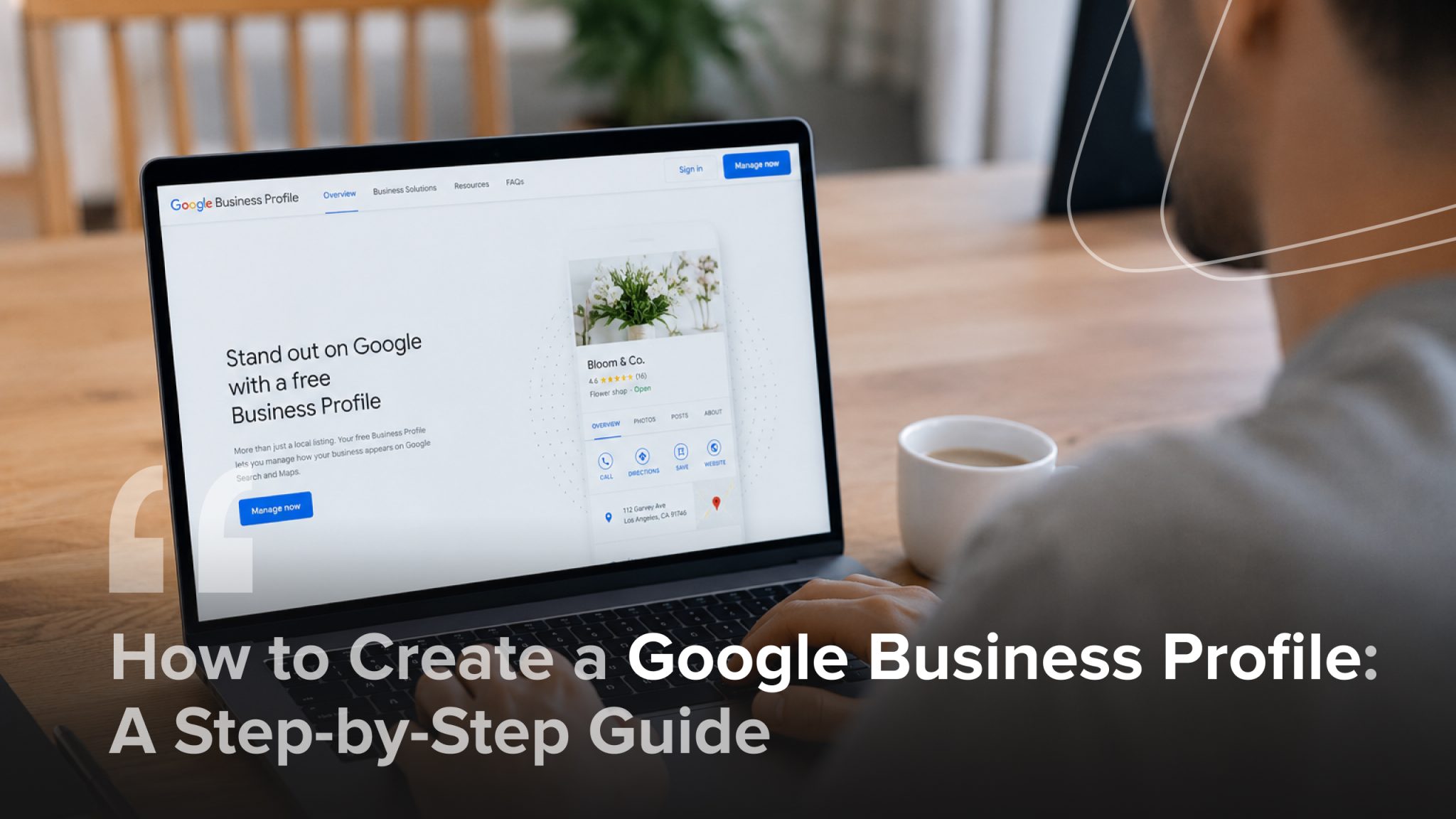
Formerly known as Google My Business, Google Business Profile (GBP) is a free tool enabling businesses to manage how they appear across Google Search and Google Maps. It displays key details like your business name, address, phone number, website, hours of operation, customer reviews, photos, and more. Even better, it’s interactive. Clients can ask questions, leave reviews, book appointments, and even send messages directly from your profile. So, think of it as your business’s digital storefront and a powerful platform for customer engagement.
How will your company benefit from Google Business Profile installation and optimization? You’ll enjoy increased online visibility just where you need it by getting a chance to pop up in Google’s local pack (three top search results) when someone looks up the type of product or service you offer in their location. Through reviews, Q&As, updates, and direct messaging, you can communicate and engage with your customers. Meanwhile, photos and videos help bring your business to life, enticing prospects to choose you over competitors.
Google loves businesses that help users get fast, accurate, and relevant information. A well-set active GBP page tells Google you are a trustworthy, legit business worth recommending. In practice, it will improve your local search rankings, boost opportunities to appear in “near me” searches, and enhance your brand credibility in the eyes of Google and potential customers alike. With 76% of “near me” searches resulting in a visit to a physical store, solid local online exposure will bring more foot traffic and qualified leads to your door, directly impacting your revenue growth.
If you wonder how to make a Google Business page that will be favored by Google for relative searches, get to Google Maps listing, and contribute to your local business success, here is a process you should follow to observe all the essential aspects and not miss a thing.
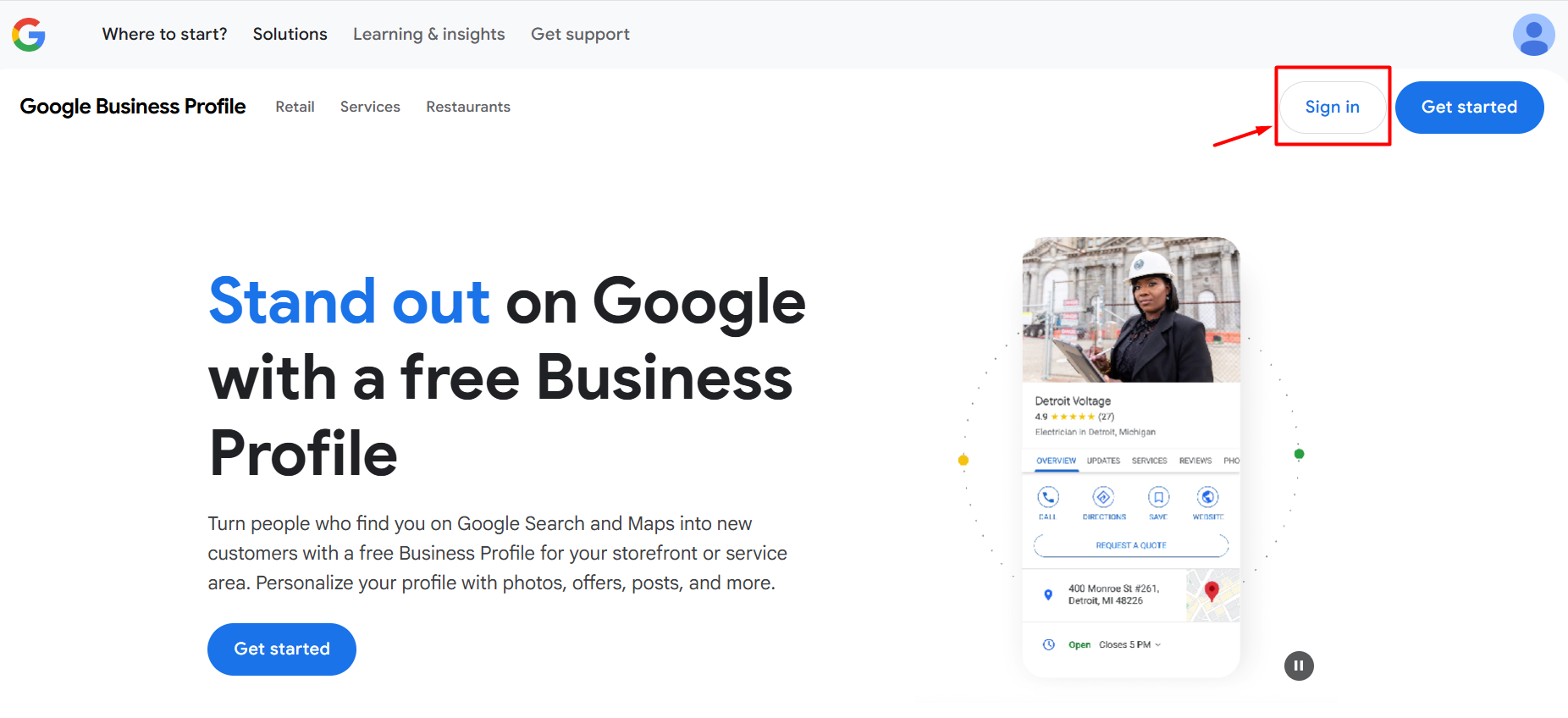
To create a GBP page, you’ll be asked to sign in with a Google account. If you already have a business-related account and Gmail address, use those. If not, consider creating separate ones to keep business and personal matters organized since the Google account isn’t just for login purposes only, it becomes the owner and manager of your GBP profile. If your business has multiple team members managing its online presence, you can later add them as users with their own roles and access levels without the need to share your password.
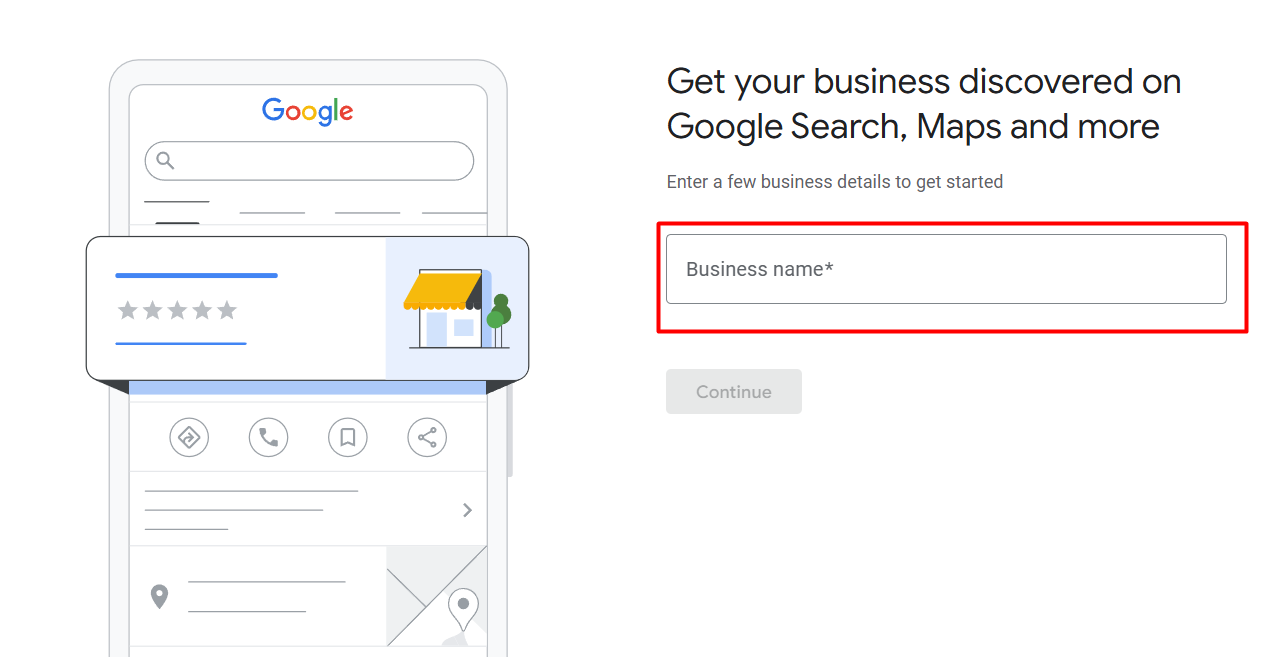
Once you’re signed in, you’ll start building your profile by specifying your business name. Take this step seriously. Representing your brand and your company’s name are the first things people see when your profile appears in search results. So, it’s essential to enter it accurately and be consistent across your website, social media, and other directories to maintain credibility.
This step helps clarify how and where your business interacts with customers, which directly affects how your profile will appear in Google Search and on Google Maps. You might have a physical location, deliver services, or operate fully online. Making the proper selection here ensures your company is shown in the most relevant local searches, helping Google match your business with the right kind of customer search intent.
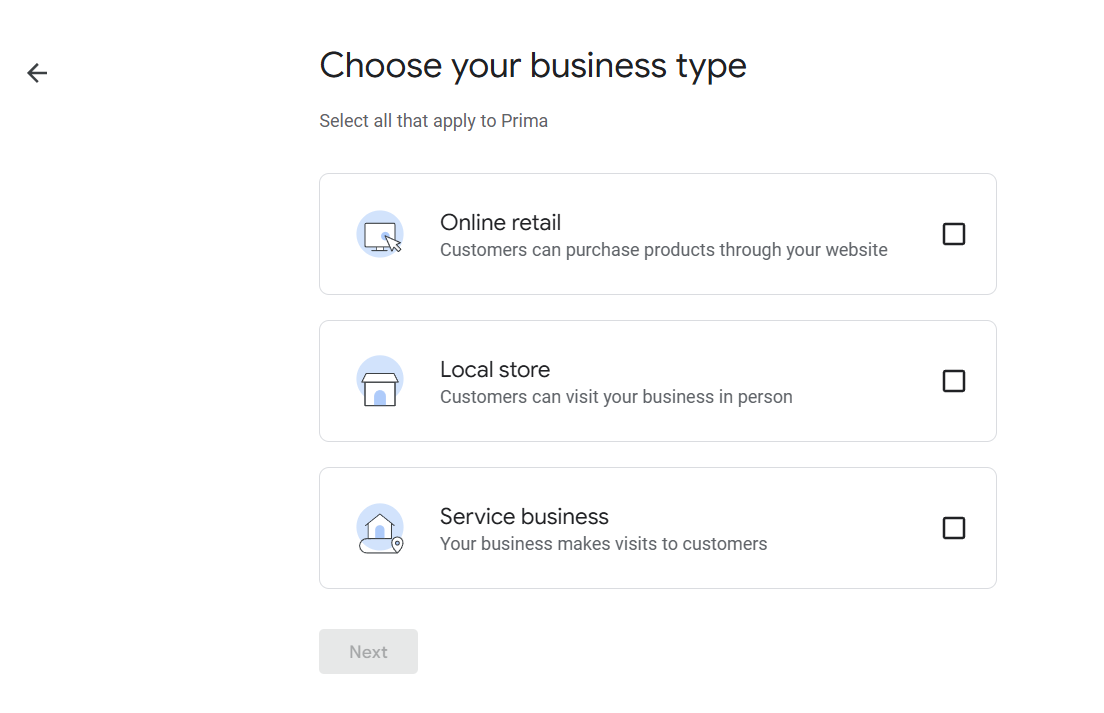
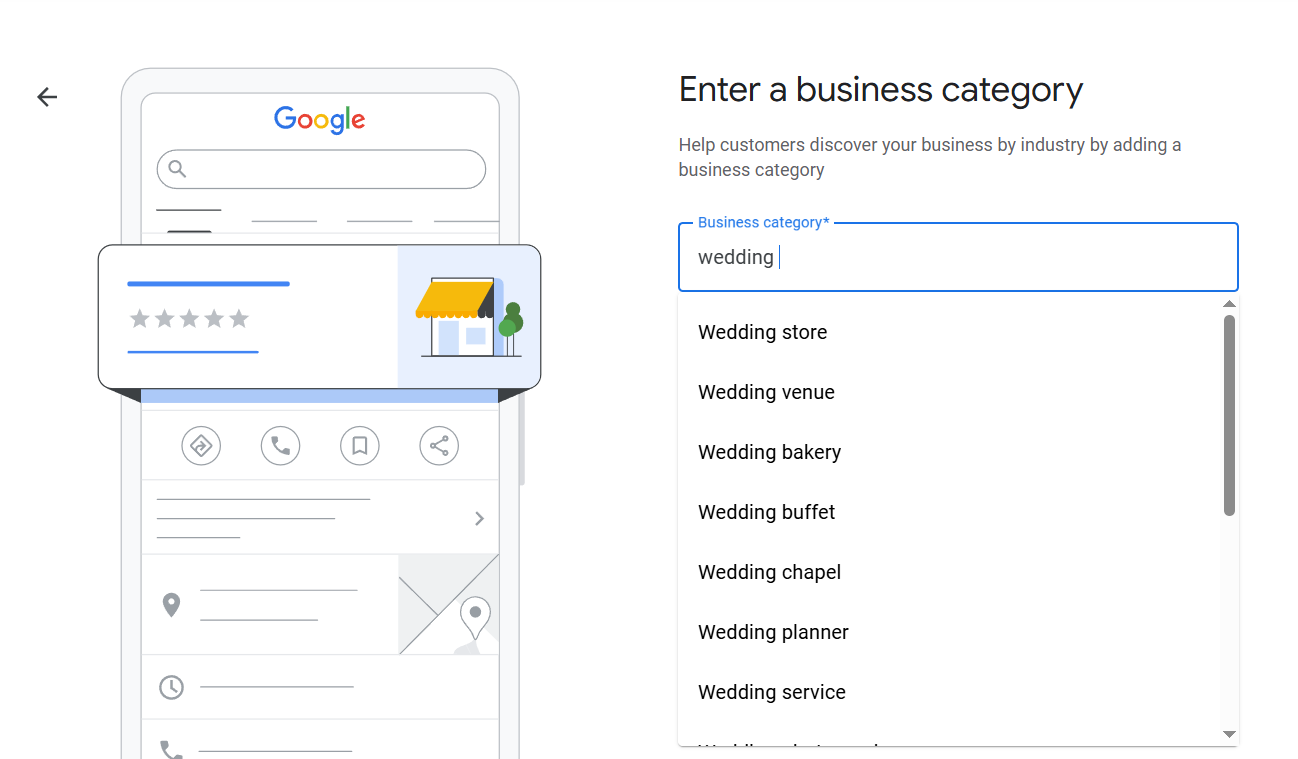
While telling Google what your business is all about to help it determine when to display your profile, the selected category also affects what features are available. For example, restaurants can display menus, beauty salons can offer booking buttons, and hotels can showcase amenities.
Notably, you can only choose from the Google category setlist, which will drop down as you start typing. So, pick the one that most accurately reflects your primary business focus. You’ll be able to add more categories later if your product or service list expands.
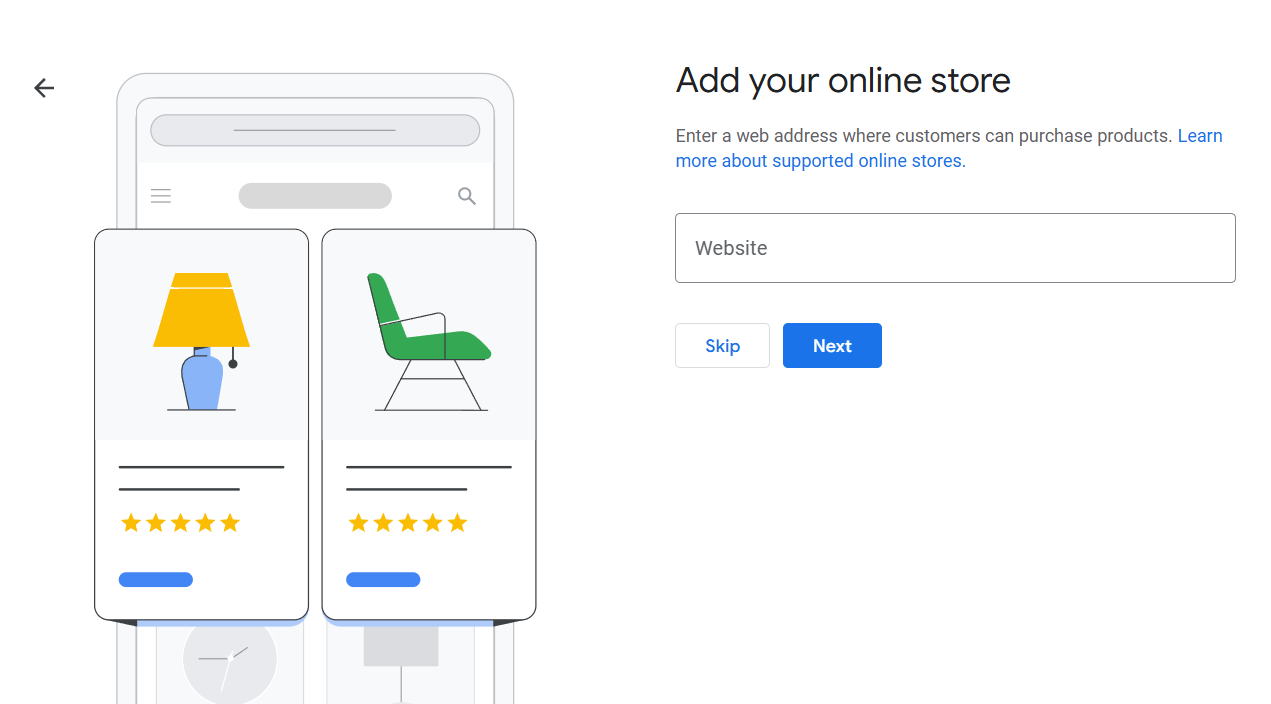
If you run an online business, you’ll have to enter a website address.
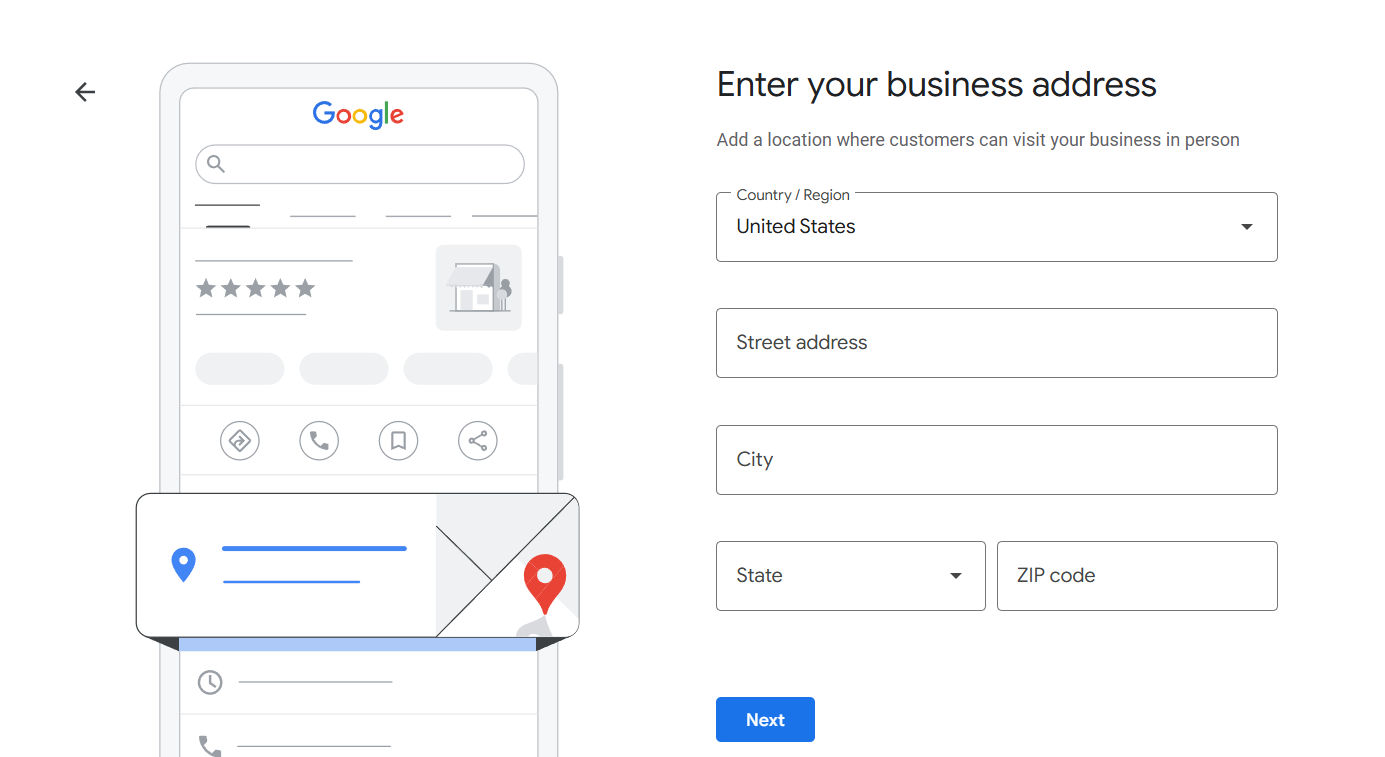
If your business has a storefront, office, or any place where customers can walk in, Google will ask you to specify your business address, which will appear on your profile and Google Maps. Make sure it’s accurate and appears uniformly on your website and other directories to look reliable and trustworthy.
If you don’t have a storefront and instead provide services at your customer’s location, you’ll have to specify your service area. Even if you hide your address, your business will still show up in relevant searches within your service area, but customers won’t see a map pin or directions to a location.

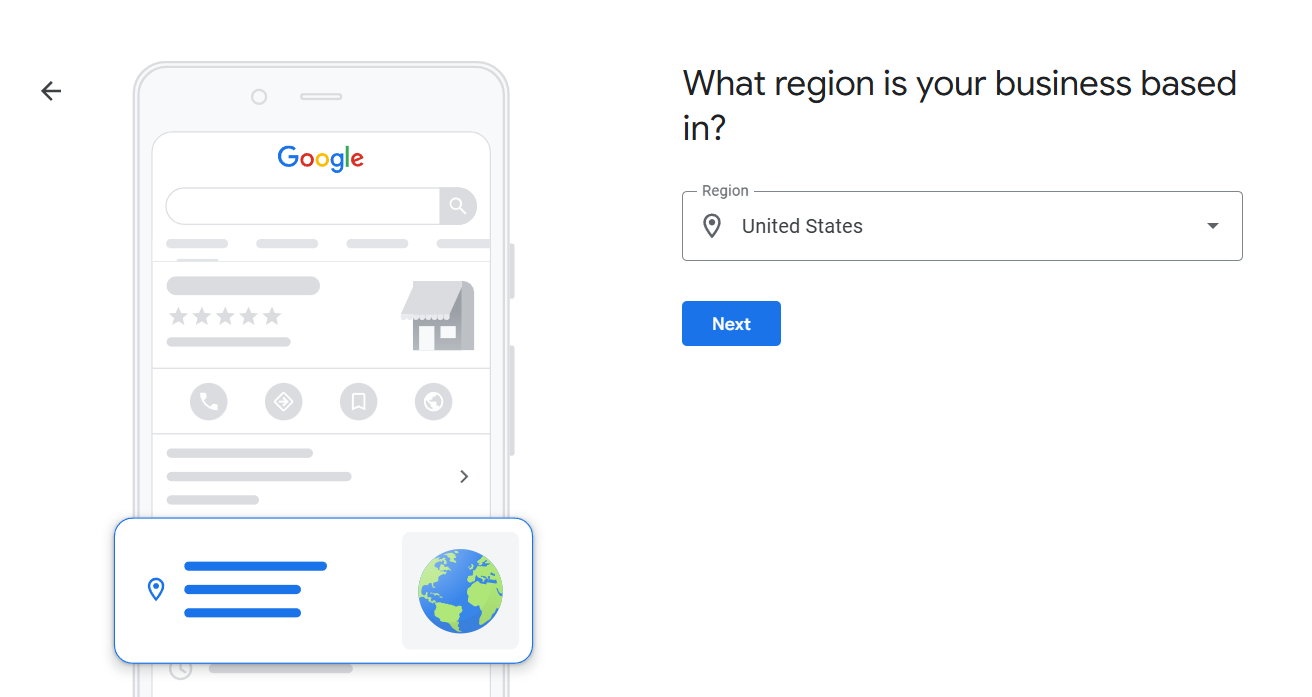
Pick the primary country or territory where your business is located or where you mainly provide services for your business to be displayed to the right audience. Your region also determines how Google formats your business information, like currency, units of measurement, or phone number structure. And it may influence how you verify your business further. So, if you operate across multiple countries, set your main region now and optimize for international reach later through your website, languages, and ads.
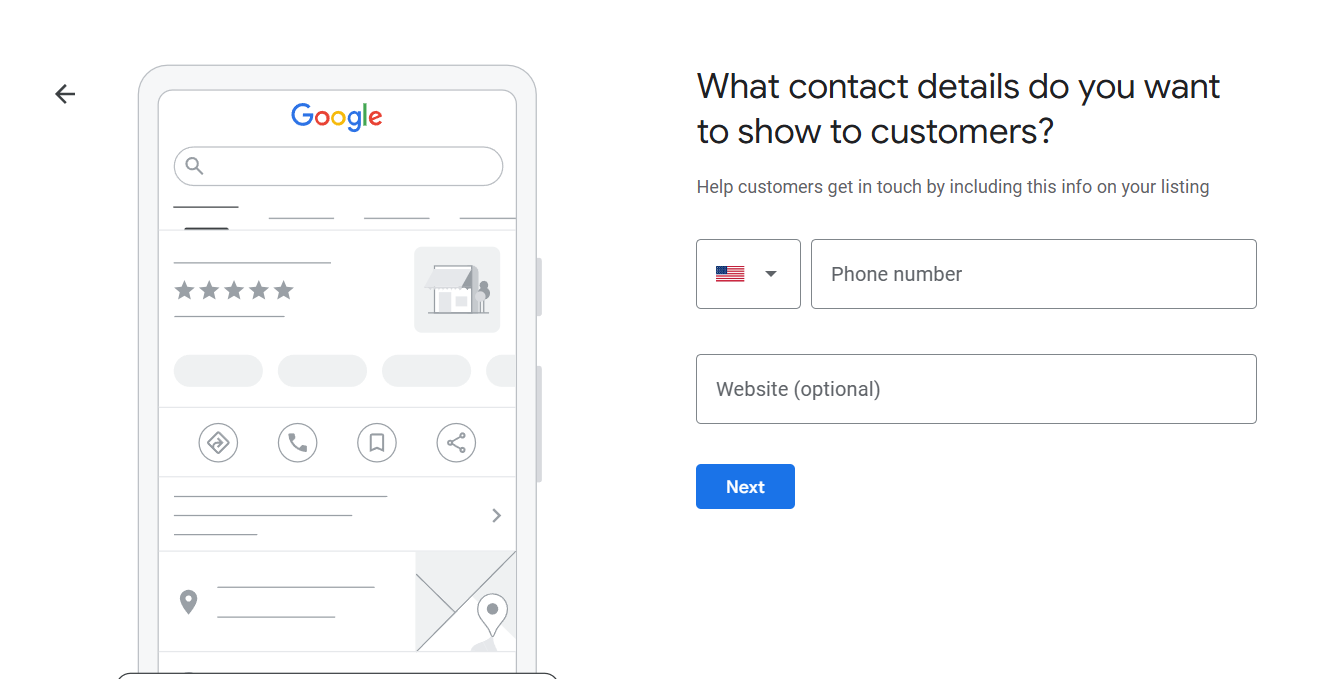
Add your phone number and website URL so that customers can reach you. If you don’t have a website yet, Google gives you the option to create a free basic one based on your business info.
To make your profile live, Google needs to confirm you’re the rightful owner. Most often, Google mails a postcard to your business address with a verification code you should enter to complete verification.
The more complete and accurate your profile, the more likely it is to attract attention and trust. At this point of creating a Google Business page, you can fill in such details as:
To put your company on the map, Google double-checks that you actually own or manage the business you’re claiming. It protects both you and potential customers by ensuring that your profile is accurate, legitimate, and trustworthy.
Google provides a few verification methods. The options you’ll see depend on your business type and region.
Sometimes, Google needs additional time to review your submission or may suspend the profile if something seems suspicious or risky. If that happens, check your info for accuracy and consistency and contact Google support for help or appeal a verification denial.
Do you need a Google Business Profile? Absolutely! Whether you run a local shop, a mobile service, or a growing brand with multiple locations, it will serve as your digital storefront, the place where first impressions are made and decisions are influenced.
How to create a Google Business page? Our guide has walked through every step of the process. So, why wait? Take charge of your online presence. Your customer could be just a Google search away, especially if you leverage local SEO the right way.
Also, check why local SEO is important for B2B companies.


“Livepage has proven to be a reliable source for rapid online growth. We started with 2,000 visitors per month. In 3 years together with Livepage we have reached 70,000 visitors and more than 100 leads from the site per month.”


“As for the results, we’ve been working together since 2015, and our traffic has increased 10x. I cannot say that Livepage was our first SEO company, but they have become the first SEO partner that helped us to achieve the success we were looking for.”


“Livepage delivers SEO efforts that have led to an increase in the site’s users, traffic, and conversions. The team uses a wide range of tools to achieve the client’s goals. They are attentive to the client’s needs, working with them in real-time and bringing in additional specialists when needed.”


“I am pleased with the quick task execution and the instant replies to my messages.”


“I like the complex approach that the Livepage team offers. Absolutely all team members work together; everyone is aware of what is happening on the project. We have one common goal – to increase our service sales, and the team is making every effort to achieve the goal as soon as possible.”


“We’ve been really impressed by how Livepage quickly understood our business and centred our PPC campaign around our objectives. We have achieved good results within a very short time in both revenue and ROI.”


“Everything is clear, timely, and understandable.”


“They have leveraged ideal opportunities to reach our business goals.”